The newly redesigned IEDB solutions center (https://discuss.iedb.org/) is being launched in late 2025 with the goal of improving the user experience and organizing IEDB-related content in a way that is more intuitive. Users can search for relevant topics in the Knowledgebases, access tutorials for tools and features, get information about upcoming events, or get feedback from the IEDB staff and user community via the Discussions forum.
Creating an Account
An account is not necessary for viewing any of the content posted on the IEDB Discourse. However, it is necessary in order to post a question, help request, or comment in the Discussions forum. To create an account, select the Sign Up button at the top right of the home page, and fill in your email address. Choose a username, password, and screen name. You will then receive an email from Discourse asking you to verify your account. Once your account has been verified and approved by an IEDB/CEDAR team member, you can post in the Discussions forum.
Content on the IEDB Discourse
Information on Discourse is sorted into seven broad categories, as well as an eighth Discussions category, which are all visible on the homepage (Fig 1).
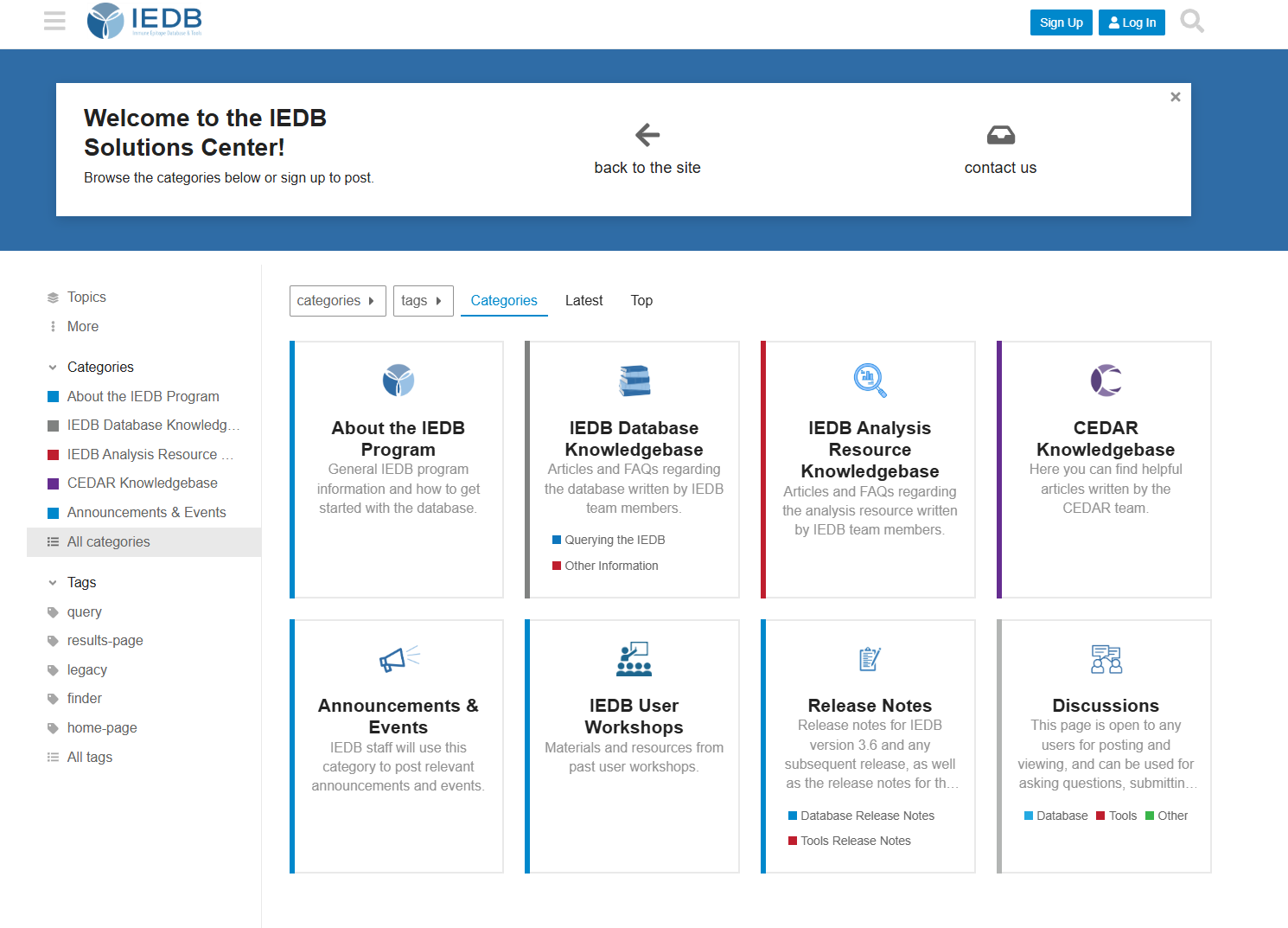
Fig 1: IEDB Discourse homepage
Topics can be accessed by either directly clicking on a category and viewing its topics, or by searching for them via keywords and tags. To search for a topic, use the search bar in the top right-hand corner of the site. Keywords will bring up any topic or post relevant to that term. For example, searching for the term “API” will bring up several articles describing IEDB and CEDAR APIs (Fig 2).
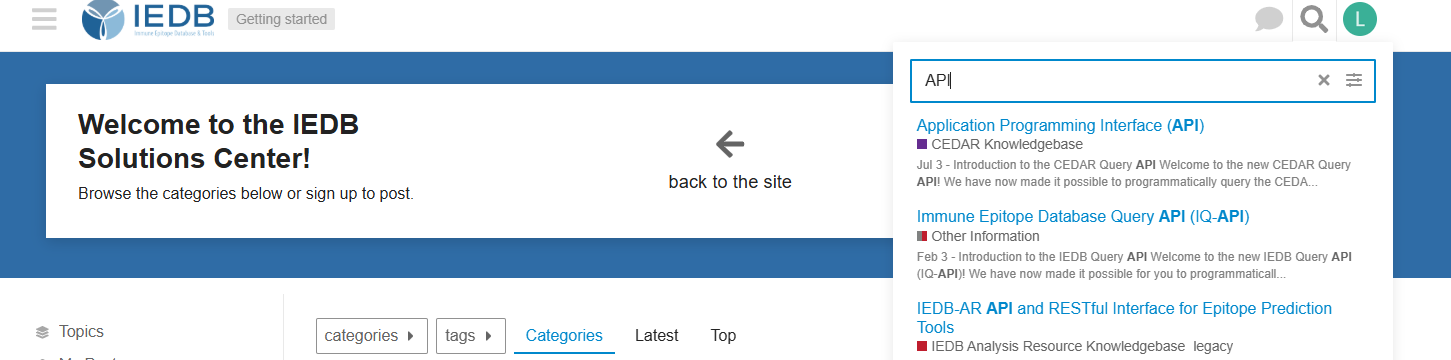
Fig 2: Discourse search bar, shown on an account where the user is logged in.
Tags help further categorize articles and posts, and are manually added by a post’s author. If an article has tags, those will appear below its title (Fig 3).
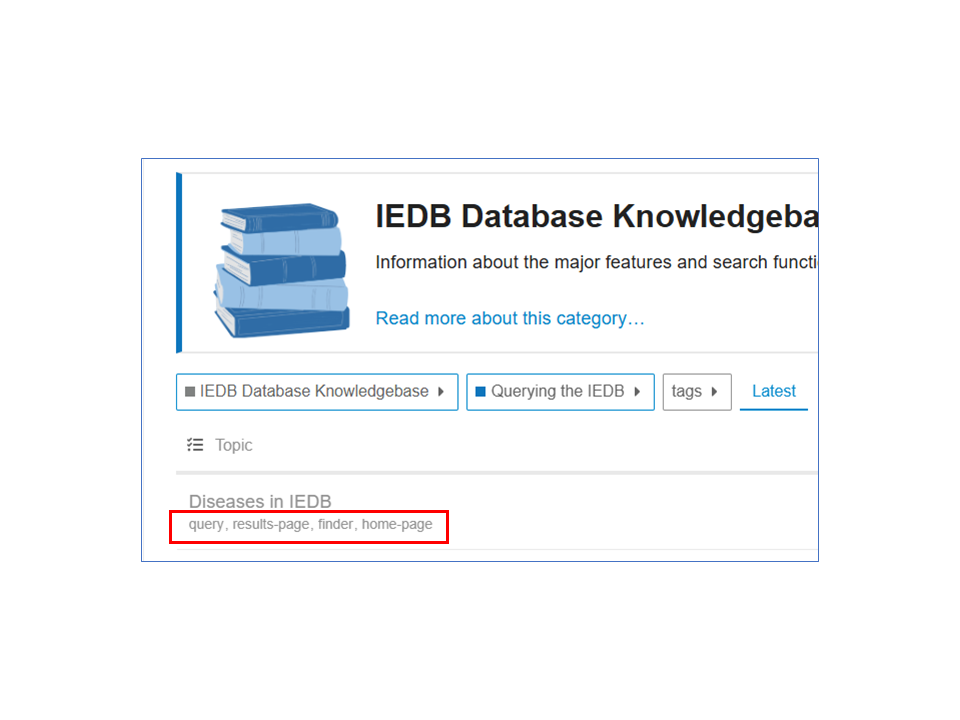
Fig 3: Tags on a help article
More information about the IEDB Discourse categories is described below.
- About the IEDB Program: General IEDB program information and how to get started with the database.
- IEDB Database Knowledgebase: Articles and FAQs regarding the database written by IEDB team members. The Database Knowledgebase is further divided into Querying the IEDB and various query features, and other information.
- IEDB Analysis Resource Knowledgebase: Articles and FAQs regarding the analysis resource written by IEDB team members.
- CEDAR Knowledgebase: Articles and FAQs regarding the Cancer Epitope Database and Analysis Resource.
- Announcements & Events: Relevant announcements and events for upcoming opportunities, learn more about the IEDB and CEDAR.
- IEDB User Workshops: Materials and resources from past user workshops, including video links and slide decks.
- Release Notes: Release notes for IEDB version 3.6 and any subsequent release, as well as the release notes for the IEDB Analysis Resource version 2.27 and any subsequent release.
- Discussions: Used for user questions and feedback. See the section below for using the Discussions forum.
Using the Discussions Forum
- Log in to Discourse. If you do not already have an account, see create one as described in the beginning of this article.
- Choose which subcategory in the Discussions Forum is most relevant for your query (Fig 4).
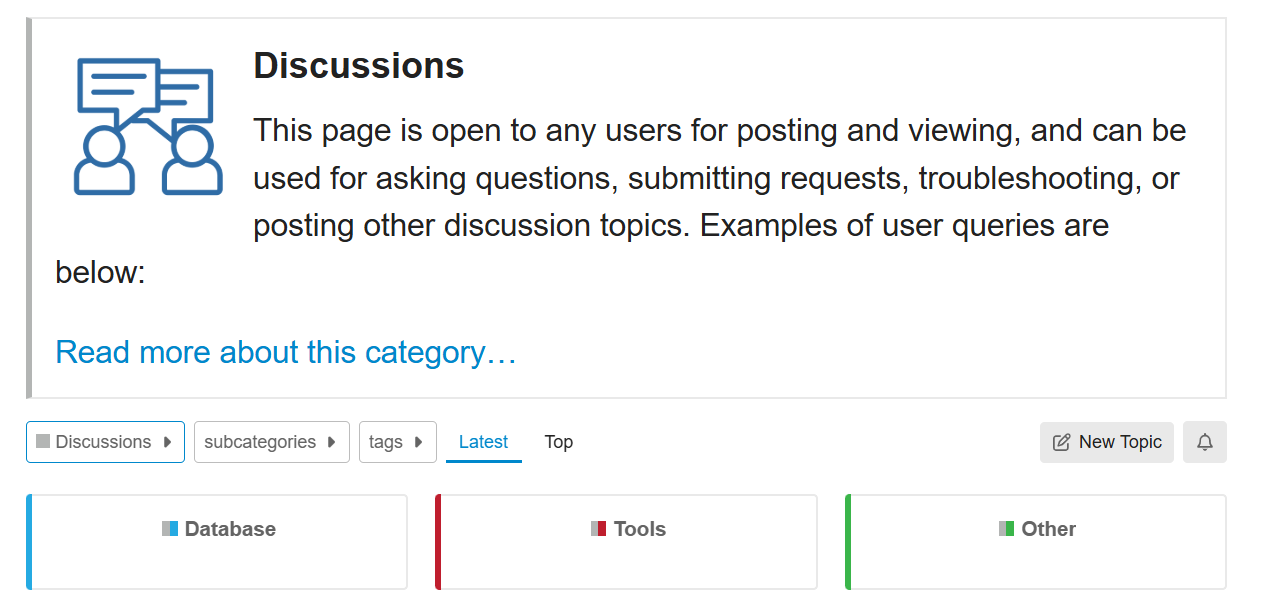
Fig 4: Discussions subcategories
- Create your topic by clicking on the ‘New Topic’ button. A window will come up where you can title your question, and then enter more details in the main text box. Any .pdf, .png, or .jpg files can also be attached to your topic by selecting the upload icon, as long as they don’t exceed 4 MB (Fig 5). Select ‘+ Create Topic’ once you are finished. Because all new Discussions topics need to be approved by the moderation team, there may be a delay between when you first submit your topic and when it appears in the Discussions form.
- You can also add a tag to your topic in the ‘optional tags’ section to further specify the area it is about. For example, in the example shown in Fig. 5, the user might choose to tag the topic with the term “query”.
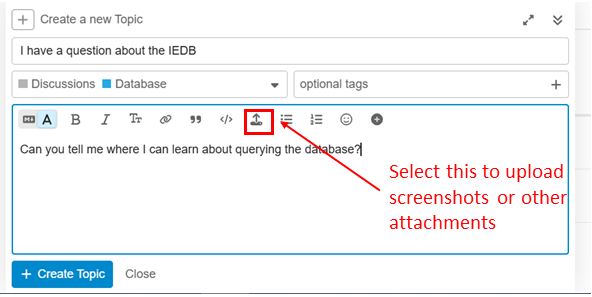
Fig 5: Posting a topic to the Discussions Forum
- Once your topic is approved, an IEDB staff member will respond to your inquiry. If the response is sufficient to answer your question or request, you can check the ‘solved’ icon at the bottom of the post (Fig 6). You can also reply to a staff response (Fig 6) indicating that they sufficiently answered your question or request, or continue the conversation if more follow up is necessary.
- An IEDB staff member may also check the ‘solved’ box if the request has been resolved. Topics marked as ‘solved’ will automatically close within 5 days.
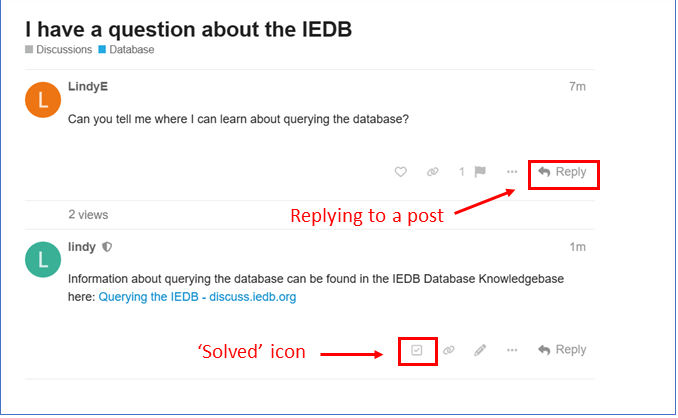
Fig 6: Interacting with a post on the Discussions Forum
If you have further questions, you can open a new thread in the Discussions Forum, and provide links to previous questions if necessary or useful.